

thumb_up
1
open_in_new
View on sbox.game
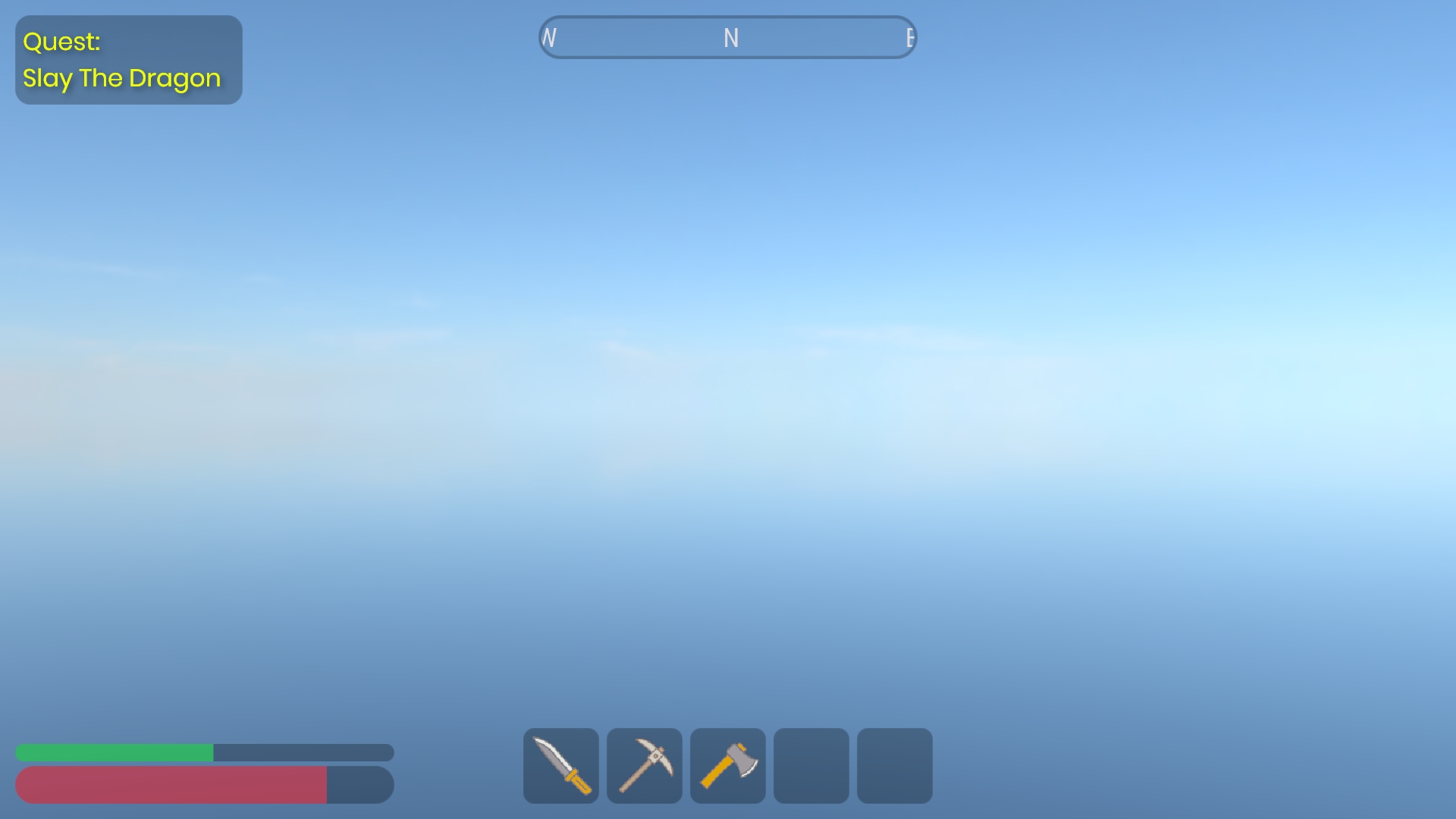
It's recommended to restart the editor after installing this library
What's Included 👍
- Screen Space UI with Resolution Scaling
- Image & Text Nodes
- Borders & Rounded Corners
- Input System
- Buttons
- Parent/Child Anchoring, Padding, Clipping, Stretching
What's Planned ⏰
- Edit Mode Preview
- World Space UI
- Sliders, Checkboxes & Toggles
- Input Fields
- Horizontal & Vertical Layouts
- Scroll Views
- Proper documentation
Getting Started 🎯
The fastest way to understand UI Pro is to open the included example scene.
It has a working Canvas, Input System and Button that updates a TextNode when you click it.
Press play, click the button, then inspect how GameObjects and Components are wired together - that's the whole pattern.
It has a working Canvas, Input System and Button that updates a TextNode when you click it.
Press play, click the button, then inspect how GameObjects and Components are wired together - that's the whole pattern.
The Way It Works ⚙️
Every UI Pro setup has the same layout
Canvas
Canvas
The renderer and root of your UI. Every UI Node must be a child GameObject of a canvas.
Image & Text Nodes
The visible bits - placed as child GameObjects of a Canvas
then positioned and styled by their various properties in the inspector.
- Note: you should only have one Image/Text Node per GameObject.
Input System
You need only one Input System component somewhere in the scene.
It reads the mouse and dispatches click/hover events. Without it, nothing
is interactive.
- Note: you must enable "Receive Pointer Input" on a Node for buttons etc to work
Behaviour - Buttons
Sits alongside a node and reacts to pointer events. Set its Target to the
node it should recolour on hover/press, and hook up its OnClick.
Creating Your Own Button 🪄
1. Add an InputSystem Component to any GameObject (only one needed).
2. Add a Canvas Component to another GameObject.
3. Under the canvas, add a child GameObject with an ImageNode Component.
Give it a Size in Layout Settings.
4. On that node, tick "Receive Pointer Input" so it can be clicked. (Nodes
are non-interactive by default, so text and decoration don't eat clicks.)
5. On the same GameObject, add a Button Component and set its Target to the
ImageNode. Adjust the Default / Hovered / Pressed tints.
6. (Optional) Subscribe to the buttons OnClick event from another script to make the button do cool stuff
--------------------------------
2. Add a Canvas Component to another GameObject.
3. Under the canvas, add a child GameObject with an ImageNode Component.
Give it a Size in Layout Settings.
4. On that node, tick "Receive Pointer Input" so it can be clicked. (Nodes
are non-interactive by default, so text and decoration don't eat clicks.)
5. On the same GameObject, add a Button Component and set its Target to the
ImageNode. Adjust the Default / Hovered / Pressed tints.
6. (Optional) Subscribe to the buttons OnClick event from another script to make the button do cool stuff
--------------------------------
This is an early release built by one person. Bug reports are hugely appreciated, and if there's a widget you
need that's missing, say so. Real use cases drive what gets built next.
Links
https://github.com/lilboiUK/sandbox-ui-pro
https://youtube.com/@lilboiUK
need that's missing, say so. Real use cases drive what gets built next.
Links
https://github.com/lilboiUK/sandbox-ui-pro
https://youtube.com/@lilboiUK
No usage statistics available
This package may be new or not widely used yet. Usage data becomes available as more users install and play with the package.
This package may be new or not widely used yet. Usage data becomes available as more users install and play with the package.
0 recorded entries
| Rank | Player | Score | Recorded |
|---|---|---|---|
|
refresh
Discovering package leaderboards...
|
|||
Package ID:
lilboi.ui-pro
Created:
2026-06-22 01:13 UTC
Updated:
2026-06-22 20:06 UTC
Type:
library
Public:
Yes
Version:
293285
files:
21
Size:
0.1 MB
Engine Version:
26
Asset Version ID:
293285
Version Created:
2026-06-22 20:06 UTC
Hash:
1782158805
Manifest: Open manifest
293285
Jun 22, 2026
Changes on 2026-06-22
293128
Jun 22, 2026
Changes on 2026-06-22
292847
Jun 22, 2026
v0.1
Live API Passthrough & Removal Notice
This file manifest and asset metadata are retrieved live directly from the official Facepunch s&box public API. s&box Explorer does not host, store, or redistribute any package files. All download links route directly to Facepunch CDN servers.